
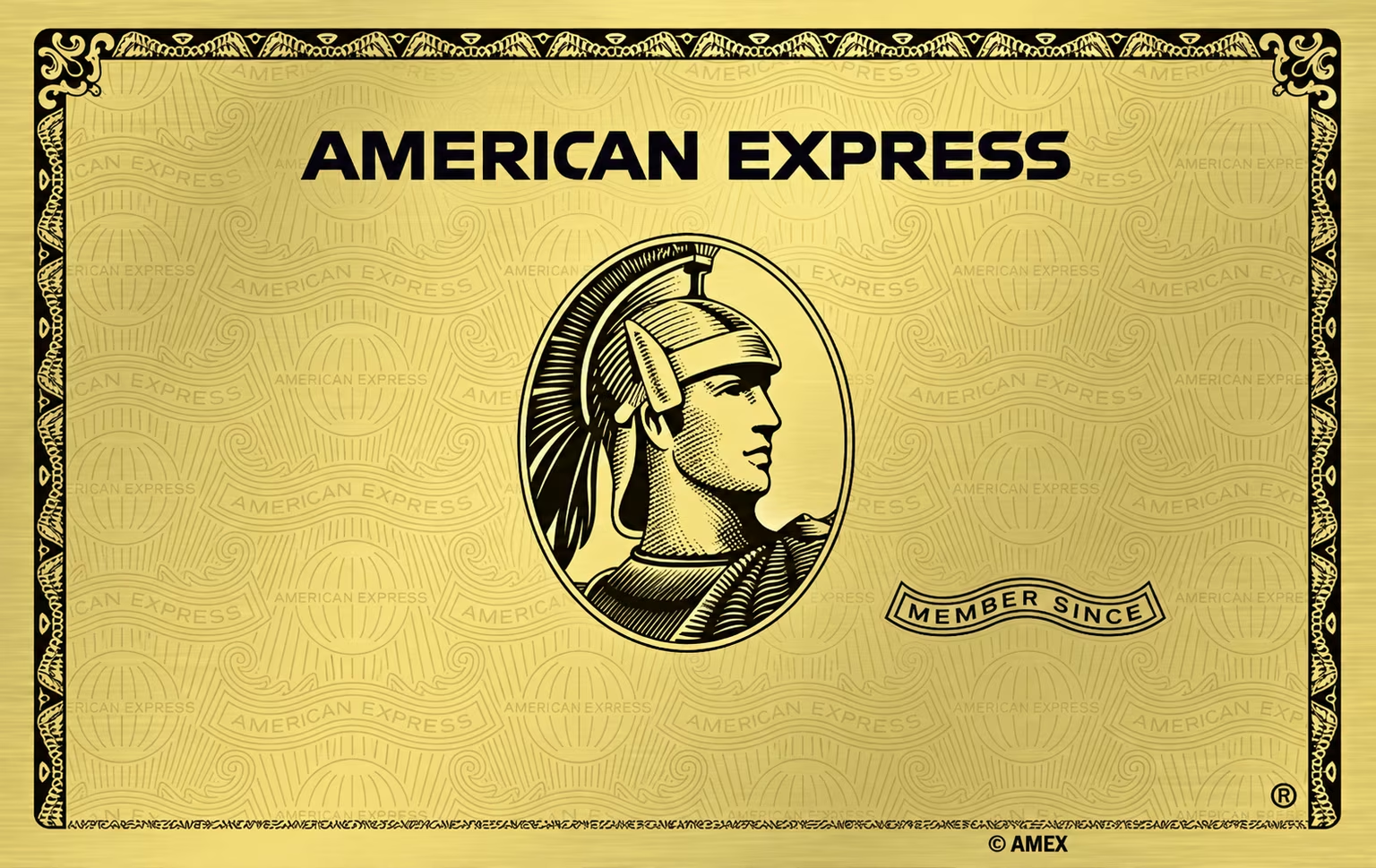

Your everyday, redesigned

Same card.
Your kind of style.

Find an artwork you love. Add the details you want. See your card come together, right here.

Free preview now. Mac app coming soon.

Gold American Express artworkNavy leather Dior artwork
A little more you.01 / 69
01 / The design studio

Choose a card design.

Start with the artwork. Every logo and detail is optional.

  1. 1 Design
  2. 2 Personalize
  3. 3 Preview
02 / The Mac app

Artwork for the
cards you already use.

The studio creates your preview. CardMuse for Mac is the next step for applying artwork to a compatible card in Apple Wallet.

Early access

Customer release in preparation

The design studio is open. We are preparing and checking the Mac app before opening downloads or payments.

Release status

The Apple Silicon preview still needs real-device validation, Developer ID signing and notarization. A public installer is not available yet.

Before installing

What your Mac and iPhone need.

  1. 01An Apple Silicon Mac running macOS 14 or newer, plus an iPhone with a standard card already in Wallet.
  2. 02USB is needed for first pairing. Wi-Fi works only after Finder has already paired this iPhone with the Mac.
  3. 03Apple Card's dynamic artwork is not supported. CardMuse also has no one-click restore of the original artwork.

Review the setup requirements

03 / Design to Wallet

From your screen
to your everyday.

Keep your preview now. Here is what applying it in Wallet will involve when the Mac app is released.

01

Make a design

Choose a card design from the gallery or frame your own photo. Download a watermarked preview to check the crop.

02

Install & connect

Install CardMuse on your Mac when it is released. Pair your iPhone by USB first. Wi-Fi works after pairing with this Mac in Finder.

03

Choose a Wallet card

In the Mac app, choose a card that is already in Wallet, apply your design, then check the result on your iPhone.

A few things to know

Before you make it yours.

Does the PNG go straight into Apple Wallet?

No. It is an image preview. Applying artwork to a compatible Wallet card requires CardMuse for Mac. The customer release is still being prepared.

Can I remove a logo or try another design?

Yes. Tap the × beside a logo in “On your card”. Undo brings it back. Change design keeps the logos and name you added, so you can try another background.

Can I use my own photo?

Yes. Open “Add your own photo” in the editor. Your photo and draft stay in this browser. You can crop the image before saving a preview.

What will I need for the Mac app?

An Apple Silicon Mac with macOS 14 or later, an iPhone with a supported Wallet card, and a USB data cable for first pairing. Compatibility and installation details will be confirmed before the customer release.

CardMuse · for Apple Wallet

Find your everyday favourite.

Try a different look. Keep the details you like. Your design is saved in this browser so you can come back to it.

Create a preview ↗
Preview & next steps

Take your design
with you.

Save a PNG preview now. To change the artwork in Apple Wallet, you will need CardMuse for Mac.

  1. 1
    Save your preview

    A 1536 × 969 PNG with a small preview mark. Keep it to check your design.

  2. 2
    Install CardMuse for Mac Coming soon

    When released, install it on an Apple Silicon Mac running macOS 14 or later.

  3. 3
    Connect your iPhone

    Pair by USB first and tap Trust on your iPhone. Then use the Mac app to choose a supported Wallet card and apply your artwork.

The Mac installer is not available yet. Saving this PNG will not change your Wallet card.

CardMuse for Mac · Coming soon

The Mac app is coming soon.

You can explore the interactive preview and download a watermarked design now. The Mac app and full download will open after the release is ready.

Interactive design previewAvailable nowCardMuse for MacComing soon

No payment is available yet. Your preview stays free to explore.